How to Double Space on Word
Double spacing is a common formatting requirement for academic papers, professional documents, and other written materials. It creates a clean, easy-to-read appearance and helps to improve the overall readability of your text.
In Microsoft Word, double spacing is achieved by adjusting the line spacing setting. Here's how to do it:
- Open the document you want to double space.
- Click the "Design" tab at the top of the window.
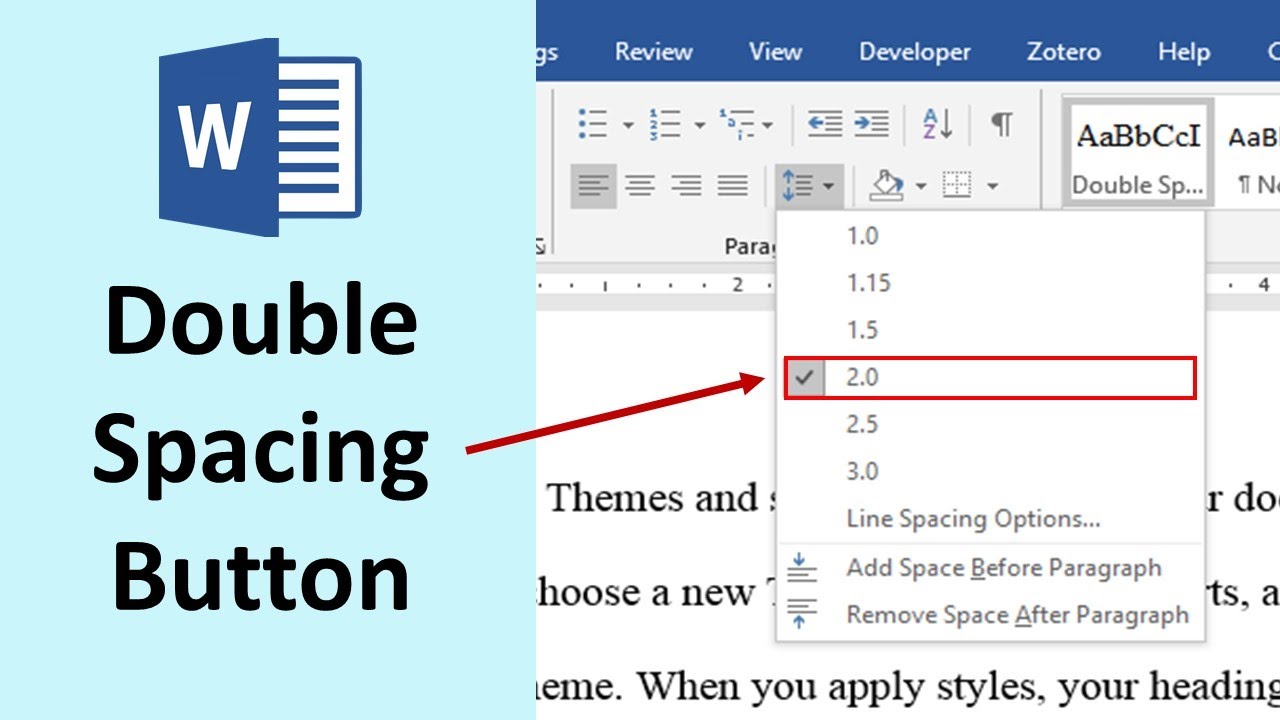
- In the "Paragraph" section, click the "Line Spacing" button.
- Select "Double" from the drop-down menu.
Your text will now be double spaced. You can also use the keyboard shortcut "Ctrl" + "2" to quickly double space selected text.
Double spacing can be beneficial for several reasons. It improves readability by making it easier for the reader to follow along with your text. It also helps to create a more professional and polished appearance for your documents.
FAQs
Here are some frequently asked questions about how to double space on Word:
Question 1: Why should I double space my document?
Answer: Double spacing improves the readability of your document by making it easier for the reader to follow along. It also helps to create a more professional and polished appearance.
Question 2: How do I double space my entire document?
Answer: To double space your entire document, go to the "Design" tab and click the "Line Spacing" button. Then, select "Double" from the drop-down menu.
Question 3: How do I double space only a portion of my document?
Answer: To double space only a portion of your document, highlight the text you want to double space and then go to the "Design" tab and click the "Line Spacing" button. Then, select "Double" from the drop-down menu.
Question 4: Can I double space using a keyboard shortcut?
Answer: Yes, you can double space using the keyboard shortcut "Ctrl" + "2".
Question 5: What is the default line spacing in Word?
Answer: The default line spacing in Word is 1.15 lines.
Question 6: Can I double space in other Microsoft Office programs?
Answer: Yes, you can double space in other Microsoft Office programs, such as Outlook, PowerPoint, and Excel. The process is similar to the process for double spacing in Word.
Summary: Double spacing is a simple but effective way to improve the readability and appearance of your documents. It can be done quickly and easily using the Line Spacing button in the Design tab or by using the keyboard shortcut "Ctrl" + "2".
Next Article Section: Tips for Writing a Professional Document
Conclusion
In this article, we have explored the topic of "how to do double spaced on Word". We have learned how to double space our entire document, how to double space only a portion of our document, and how to use the keyboard shortcut to double space. We have also discussed the benefits of double spacing and the default line spacing in Word.
Double spacing is a simple but effective way to improve the readability and appearance of your documents. It is a common formatting requirement for academic papers, professional documents, and other written materials. By following the steps outlined in this article, you can easily double space your Word documents and create a more polished and professional-looking product.
Patrick Duffy's Companion: Unraveling The Bond Of A Lifetime
Everything You Need To Know About When Is Easter
Discover The Date For Easter Sunday: Your Ultimate Guide